
Troubleshooting Installation & Launch Issues
If you encounter issues when installing Minecraft, mod loaders (Forge/Fabric/NeoForge/Quilt), mods, modpacks, or shaders, or if the game fails to launch, this guide will help you resolve them step-by-step.
🌐 1. Download Fails or Hangs (Network Issues)
Symptoms
- Downloading Minecraft, assets, libraries, or Forge/Fabric gets stuck at
0%. - The launcher throws timeout or connection errors (
CONNECTION_TIMED_OUT,NAME_NOT_RESOLVED,HTTP_STATUS 504).
Solutions
Try a Download Mirror
If the official Mojang or Forge servers are slow or blocked by your internet service provider, you can switch to a mirror:
- Click Settings (gear icon) in the left sidebar.
- Scroll to the Network Settings section.
- Find the Download Source / Mirror setting.
- Switch from Default to BMCLAPI or MCBBS (highly reliable mirrors that copy official assets).
Configure a Proxy
If you are behind a firewall or in a region with restricted internet access, configure a proxy in the launcher:
- Under Settings -> Network Settings, find the proxy options.
- Configure your SOCKS5 or HTTP proxy address.
- Test the connection.
📦 2. Mod / Modpack Download Fails (CurseForge API Restriction)
Symptoms
- When downloading a modpack or mod from CurseForge, some mods fail to download and show a warning icon.
- A message warns about "Restricted third-party downloads".
Cause
Some mod authors on CurseForge disable third-party launcher API downloads to force players to visit their webpage.
Solution
XMCL handles this by allowing you to manually download the missing files:
- Look at the download task details in the launcher's task manager (top right).
- Click the link provided next to the failed mod to open its download page in your web browser.
- Download the
.jarfile manually from your browser. - Drag-and-drop the downloaded
.jarfile directly onto the launcher's window (or place it in themods/directory of the instance). - XMCL will automatically match it and resume/complete the installation.
🔄 3. Infinite File Corruption Loop (Checksum Mismatch)
Symptoms
- The launcher continuously redownloads a library or asset file, saying it is corrupted.
- The game fails to start because validation fails repeatedly.
Cause
A file download was interrupted, and a corrupted partial file is locked in your cache, preventing the launcher from overriding it correctly.
Solution
- Find the path of the corrupted file shown in the launcher diagnostics or logs (e.g.,
libraries/org/lwjgl/...). - Open your instance data folder (click the Folder icon at the top right of the instance dashboard).
- Navigate to the path specified in the error and delete the containing folder of the corrupted library/asset.
- Click Repair or restart the launch process. The launcher will download a fresh, clean copy.
☕ 4. Game Crashes Instantly (Java Version Mismatch)
Symptoms
- The game starts but crashes immediately with exit code
1or-1. - The log says
UnsupportedClassVersionErroror "Java not found".
Cause
Each Minecraft version requires a specific version of Java (JDK). Using the wrong one will cause the game to crash.
Solution
XMCL has an automatic Java manager that downloads correct JDK versions for you.
Java Compatibility Matrix
Ensure your instance is using the correct Java version:
- Minecraft 1.12.2 and older: Java 8
- Minecraft 1.16 - 1.17: Java 16 / 17
- Minecraft 1.18 - 1.20.4: Java 17
- Minecraft 1.20.5+: Java 21
How to manage Java in XMCL:
- Go to the instance settings (gear icon next to the Play button).
- Look at the Java section.
- Click the selection box. XMCL will list all detected Java versions on your system and highlight compatible ones.
- If you don't have the correct Java version, click Install Java to let the launcher download the optimal version automatically.
📑 5. Launcher Won't Open or Black Screen
Symptoms
- Double-clicking the launcher does nothing.
- The launcher window opens but remains completely black.
Solution
You can find the log files to see what is causing the crash:
- Go to your local app data directory:
- Windows:
%appdata%\xmcl - macOS:
~/Library/Application Support/xmcl - Linux:
~/.config/xmcl
- Windows:
- Open the
logsfolder and look for the latestmain.logfile.
🔍 3. Mod is on CurseForge Website but Missing in Launcher Search
Symptoms
- You search for a mod inside the launcher, but it says "No results found", even though you can see it on the official CurseForge website.
Cause
CurseForge allows mod authors to disable third-party API access for their mods. When disabled, the CurseForge API (which XMCL uses to search and fetch mods) is forbidden from returning the mod in search results.
Solution
- Open your web browser and navigate to the mod's page on CurseForge.
- Click Download to save the
.jarfile to your computer. - Open XMCL and select your active instance.
- Drag-and-drop the downloaded
.jarfile directly onto the launcher's window. XMCL will automatically install it into themodsfolder of the selected instance.
📦 4. Imported Modpacks "Disappear" or Seem Empty
Symptoms
- You drag and drop a modpack
.zipor.mrpackfile into the launcher, but you can't find it in your current game profile, or the mod list appears empty.
Cause
- New Instance Creation: XMCL does not merge modpacks into your currently active profile. Instead, it creates a completely new Instance (profile) for that modpack.
- Background Download Tasks: Modpack files do not contain the actual
.jarmods to save space (they only contain metadata). After importing, XMCL starts a background task to download all the mods. Until this task finishes, the mod list might look empty.
Solution
- Switch Instances: Click on the sidebar menu or profile switcher to see all instances. Look for a new instance named after the imported modpack and select it.
- Check Task Manager: Click the Task icon (top right corner of the launcher) to check if the modpack download task is still running. Wait for the download to complete before launching the game.
🔄 5. Infinite File Corruption Loop (Checksum Mismatch)
Symptoms
- The launcher continuously redownloads a library or asset file, saying it is corrupted.
- The game fails to start because validation fails repeatedly.
Cause
A file download was interrupted, and a corrupted partial file is locked in your cache, preventing the launcher from overriding it correctly.
Solution
- Find the path of the corrupted file shown in the launcher diagnostics or logs (e.g.,
libraries/org/lwjgl/...). - Open your instance data folder (click the Folder icon at the top right of the instance dashboard).
- Navigate to the path specified in the error and delete the containing folder of the corrupted library/asset.
- Click Repair or restart the launch process. The launcher will download a fresh, clean copy.
☕ 6. Game Crashes Instantly (Java Version Mismatch)
Symptoms
- The game starts but crashes immediately with exit code
1or-1. - The log says
UnsupportedClassVersionErroror "Java not found".
Cause
Each Minecraft version requires a specific version of Java (JDK). Using the wrong one will cause the game to crash.
Solution
XMCL has an automatic Java manager that downloads correct JDK versions for you.
Java Compatibility Matrix
Ensure your instance is using the correct Java version:
- Minecraft 1.12.2 and older: Java 8
- Minecraft 1.16 - 1.17: Java 16 / 17
- Minecraft 1.18 - 1.20.4: Java 17
- Minecraft 1.20.5+: Java 21
How to manage Java in XMCL:
- Go to the instance settings (gear icon next to the Play button).
- Look at the Java section.
- Click the selection box. XMCL will list all detected Java versions on your system and highlight compatible ones.
- If you don't have the correct Java version, click Install Java to let the launcher download the optimal version automatically.
📑 7. Launcher Won't Open or Black Screen
Symptoms
- Double-clicking the launcher does nothing.
- The launcher window opens but remains completely black.
Solution
You can find the log files to see what is causing the crash:
- Go to your local app data directory:
- Windows:
%appdata%\xmcl - macOS:
~/Library/Application Support/xmcl - Linux:
~/.config/xmcl
- Windows:
- Open the
logsfolder and look for the latestmain.logfile.
📋 8. Generate a Diagnostic Report (Recommended First Step)
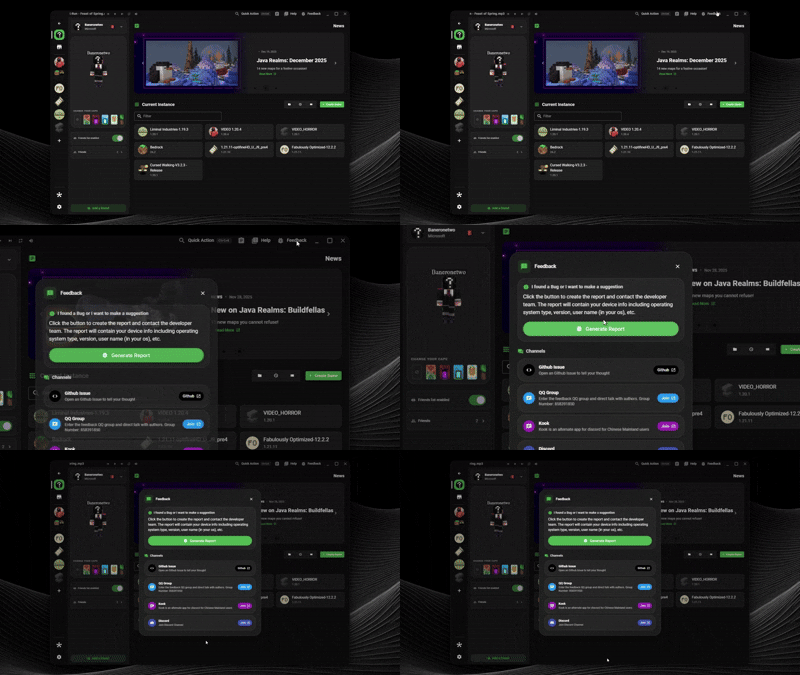
Before searching for raw log files manually, we highly recommend generating a Diagnostic Report inside the launcher. This compiles all launcher logs, game logs, and system environment info into a single package, allowing the community or developers to help you much faster.
How to Generate a Report:
Click on the Help & Feedback menu in the launcher header.
Click Generate Report to bundle launcher diagnostics and logs.
📑 9. How to Analyze Launcher & Game Logs
If you prefer to find the logs manually, they will tell you exactly what is happening. Here is how to locate them and understand common crash scenarios.
🔍 How to Find the Logs
Depending on whether it's a launcher error or a game crash, you will need to check different logs:
A. Launcher Logs (main.log)
For launcher crashes, download failures, network errors, or login issues:
- Windows: Press
Win + R, type%appdata%\xmcl\logsand press Enter. - macOS: Navigate to
~/Library/Application Support/xmcl/logs. - Linux: Go to
~/.config/xmcl/logs. - Find the latest file named
main.log.
B. Game Logs (latest.log & Crash Reports)
For mod conflicts, Minecraft crashes, performance issues, or Java errors:
- Open the instance card in the launcher.
- Click the Folder icon at the top right of the instance dashboard to open its directory.
- Go to the
logsfolder and openlatest.log. - If the game crashed and closed, go to the
crash-reportsfolder and look for the newest.txtfile (named likecrash-YYYY-MM-DD_HH.MM.SS-client.txt).
🛠 How to Analyze Logs & Fix Common Errors
Open the log file in any text editor (like Notepad) and look for the following errors (you can use Ctrl + F to search):
🔴 Case 1: Out of Memory Error
- What to look for:
java.lang.OutOfMemoryError: Java heap spaceorExit code: -805306369. - Explanation: You haven't allocated enough RAM for the game to load all the mods.
- How to fix:
- Open instance settings (gear icon next to the Play button).
- Scroll down to the Java section.
- Increase the Min Memory and Max Memory (e.g. set Max Memory to
4096or6144MB).
🔴 Case 2: Mod Mismatch or Missing Dependencies
- What to look for:
Mixin transformation failed,DependencyResolutionException, or lines likeRequires mod 'fabric' (version X or later), but only version Y is installed. - Explanation: One of your mods requires another mod (dependency) that is missing, or two mods are incompatible with each other.
- How to fix: Read the error line carefully. It usually names the missing mod. Download and place the missing mod jar file into your
modsfolder, or update the conflicting mod to a compatible version.
🔴 Case 3: Java Version Mismatch
- What to look for:
java.lang.UnsupportedClassVersionError: ... has been compiled by a more recent version of the Java Runtime. - Explanation: You are running a Minecraft version or modpack with an incompatible Java version (e.g., using Java 8 for Minecraft 1.20).
- How to fix: Open instance settings, go to the Java section, and click Install Java to download the recommended Java version for that specific Minecraft version.
🔴 Case 4: Graphics Card Driver Crash
- What to look for:
GLFW error 65542: WGL: The driver does not seem to support OpenGLorPixel format not accelerated. - Explanation: Your graphics card drivers are outdated, missing, or the game is running on your CPU's integrated graphics instead of your dedicated GPU.
- How to fix: Update your graphics drivers to the latest version from the official manufacturer website (NVIDIA, AMD, or Intel). For laptops, ensure the launcher is running on the high-performance GPU in your system settings.
❓ What to Do If You Can't Understand the Logs?
If you've looked through the logs/reports and still don't know what is causing the crash, do not worry! The XMCL community is here to help across multiple platforms:
1. Join Our Official Discord Server
Get instant help from developers and experienced players.
Join via: Discord Server Link
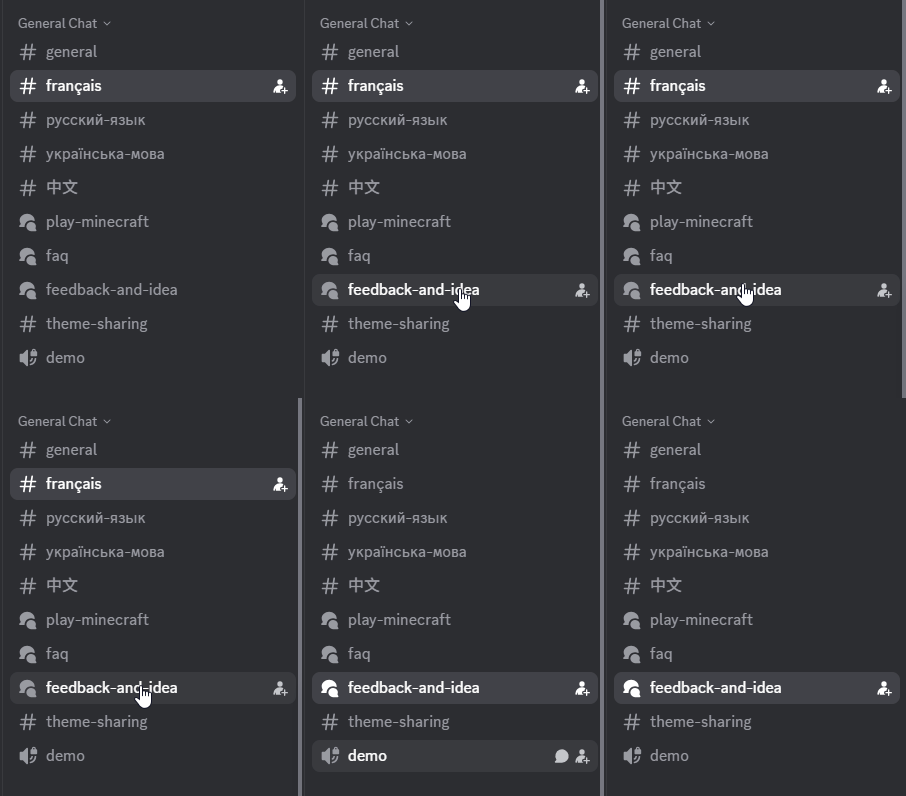
How to ask: Go to the #feedback-and-idea channel and upload your generated diagnostic report or crash log file.
Look at this illustration of our feedback channel:
2. Ask on Reddit
- You can post your issues and ask the community on our subreddit:
- Visit: r/XMCL Subreddit
3. Open a GitHub Issue
- If you believe you found a bug in the launcher itself, you can file a bug report.
- Submit here: XMCL GitHub Issues
- Paste the content of your report or logs inside the issue description so developers can debug it.